
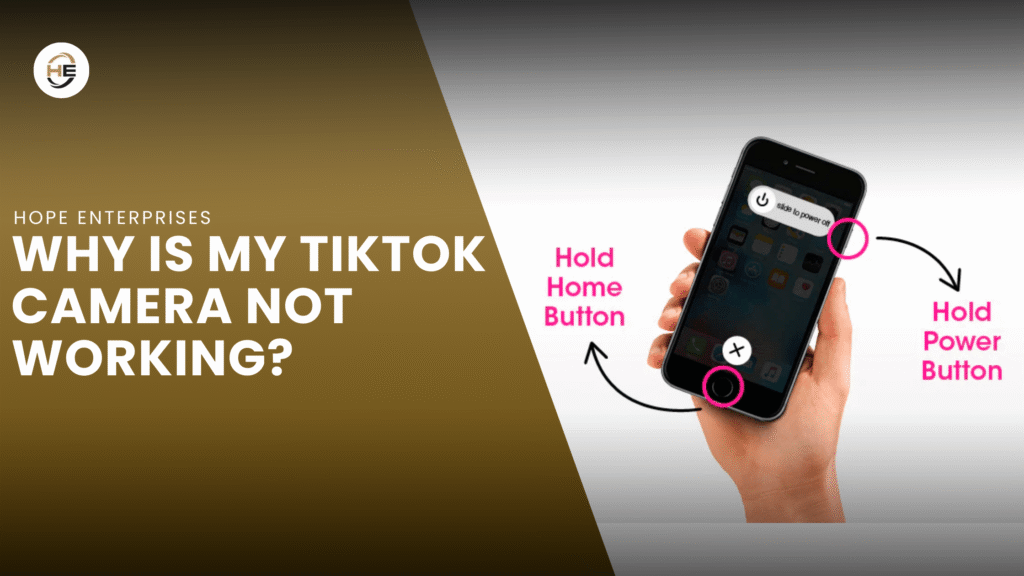
Many TikTok users suddenly face a frustrating problem: the camera stops responding, freezes, or simply refuses to open. When this happens, recording becomes impossible, and creativity takes a hit. Although the issue often looks confusing, there are several practical reasons behind it. Some are simple, such as permission errors, while others relate to storage limits, software bugs, or unstable signals. Why TikTok is not working sometimes comes down to small technical conflicts in your device.Interestingly, this problem appears on both Android and iOS devices.
Moreover, device memory, background apps, and outdated software can slow down performance. These delays affect how TikTok reads your camera. Therefore, recognizing the root cause is the first step to fixing it quickly. In this guide, we explore every major reason and offer a smooth solution. Ultimately, you will regain full control of your camera and get back to creating content without interruptions.
However, once you understand the cause, the fix becomes much easier. Wireless transmission problems can also disrupt real-time filters and effects. However, users can fix such problems by changing the settings or updating the application.
Possible Reasons Why Your TikTok Camera Is Not Working
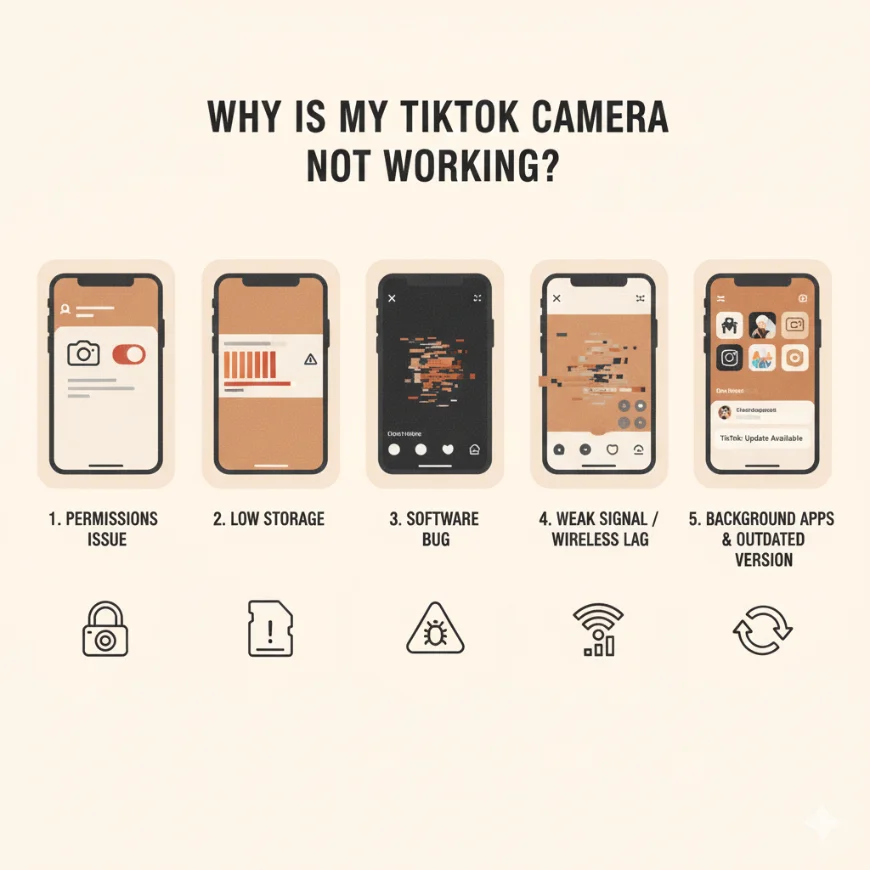
Sometimes the app fails to load your camera due to permissions, bugs, storage issues, or unstable signals. These problems affect performance and stop features from working correctly. Fortunately, each one has a simple fix. Below, we break down the most common reasons so you can understand what is affecting your recording.
TikTok Has No Access to Your Camera
Your device may be blocking TikTok from using the camera. This happens when permissions are denied during installation. Thus, the app cannot load previews, filters, or recording options. The first step is to check your phone settings and find the app permissions. Next, enable the use of the camera and the microphone. Also, after enabling them, restart the app. Such a minor modification usually brings back the entire camera functionality immediately. This is the easiest method of fixing the problem that many users miss. TikTok generally runs smoothly after permission is given.
Bugs in the App
Occasionally, app glitches prevent the camera from opening. These bugs appear after updates or when temporary files conflict with new features. Consequently, TikTok may freeze, lag, or show a blank screen. Closing and reopening the app can refresh system processes. Likewise, force-stopping the app clears stuck tasks and restores performance. If the issue continues, reinstalling TikTok often resets corrupted files. Although this problem seems complicated, it is easy to fix with a clean installation. After that, recordings, filters, and previews work properly again.
Outdated TikTok Version
Why TikTok is not working sometimes, Using an older TikTok version can limit key features. New camera tools and filters may not function because outdated software doesn’t support them. Therefore, updating the app is essential. Head to your app store and install the latest release. This will guarantee the installation of performance patches and security updates. In addition, a new release minimizes crashes and enhances stability. According to many users, only updating will fix the camera glitches immediately. After installing the update, reopen TikTok and test the camera again to confirm the fix.
Insufficient Storage and Cache
Low storage affects how TikTok processes video. TikTok fails to load filters, effects and camera previews when your device is nearly full. Clearing the cache provides the app with clean space to run without any problems. Moreover, by removing unwanted pictures or applications, you will have cleared more memory. The step is particularly useful on the older devices. When there is storage, the performance becomes significantly better. TikTok begins loading features faster and responds instantly to camera taps. Therefore, always maintain enough free space to keep the app functioning at its best.
Conflicting Apps
Some apps running in the background interfere with TikTok. These apps may use the camera, block access, or consume too much processing power. As a result, TikTok cannot open its camera properly. Closing background apps releases system resources. In particular, video-calling or scanning apps often cause conflicts. Once these apps are closed, TikTok functions normally again. If the issue repeats, restart your device to reset all running processes. This process clears conflicts and provides a smooth start for the TikTok camera.
Third-Party Emulator Issues
If your camera isn’t working when you’re using TikTok on a computer emulator, that’s not unusual. Emulators often have issues with mobile video transmission, which can cause delays or black screens. The problem might also be that the emulator can’t access your webcam correctly. To fix this, try updating your emulator or using a supported version. You should also check your webcam settings to be sure it’s recognized. After doing these things, TikTok should record just fine in the emulator.
Incorrect Camera Settings
Why TikTok is not working sometimes has trouble accessing your phone’s video because of your camera settings. Features such as HDR, manual exposure, or filters can mess things up. An easy fix is to reset your camera. Just go into your camera settings and choose the option to restore everything to the default. This returns everything to a simple, compatible mode. After that, reopen TikTok and test the camera again. Many users notice that the app becomes more responsive and stable once they remove these extra camera adjustments.
Weak Transmission Signal
A weak signal affects real-time filters, effects, and uploads. When your connection drops, TikTok fails to load the camera smoothly. This issue also interrupts video transmission, creating delays and a slow preview. Switching to a stronger network often improves performance. If you are using mobile data, move to an area with better coverage. Alternatively, restart your router if you’re on Wi-Fi. Once the signal is stable, TikTok loads quickly and responds faster during recording.
Fix It with Stable Wireless Transmission
A reliable solution involves improving how your device sends and receives signals. The Hollyland Mars 4K helps stabilize this process. It delivers smooth and steady wireless transmission for creators who need reliable performance.
The Mars 4K can be powered via USB‑C, and it supports mobile monitoring through the official Hollyland app. This allows creators to view their live feed on up to four smartphones or tablets at the same time. However, the video resolution on mobile devices may be lower than the HDMI/SDI output, and performance can vary depending on distance, obstacles, and environmental interference.
The device supports long-range connectivity of up to 450 ft (≈150 m) under ideal line-of-sight conditions. This makes it suitable for indoor or outdoor content creation, though signal quality may vary in crowded or obstructed environments. Moreover, its steady wireless link ensures reliable video transmission and consistent monitoring feedback.
With a wireless transfer system built for mobility, creators can move freely while filming. Under optimal conditions, the Mars 4K offers low latency, which helps reduce noticeable delays during recording or monitoring. Its high-tech construction also minimizes interference and supports stable performance, making it a strong choice for creators shooting in both busy outdoor areas and indoor environments.
Conclusion
Camera issues on TikTok often come from simple device conflicts, weak signals, outdated software, or storage limits. Luckily, each problem has a clear fix. Checking permissions, closing apps, updating software, and restoring camera settings usually solve the issue. However, for creators who want smoother, more reliable performance, stable wireless transmission is a game-changer. The Hollyland offers steady wireless transmission with minimal lag and clean results. Moreover, its strong design supports wireless video transmission for consistent recording. With these improvements, you can create videos confidently and keep your TikTok content flowing.
Frequently Asked Questions
Yes, press the camera switch icon, which is in the shape of two arrows and makes a circle, on the recording screen. This switches immediately to the front and rear camera. It can be used on the Android and iOS platforms during video recordings or live streaming sessions to offer maximum flexibility.
To focus your camera, tap directly on the subject you want to highlight. To keep your subject in focus, turn on autofocus in your device’s settings. For very precise focus, use spot focus. This will help you get sharp, clear videos even if your subject is moving just a bit.
The initial step is to update the TikTok app and provide all the required camera permissions. Clear the phone memory and restart the phone. Change the camera to manual focus, 30fps frame rate and 1/60 shutter speed. This enhances the video clarity and smoothness.